
Spot Trading
Binance Stop-Limit vs Stop-Market: Why a Triggered Spot Order May Not Fill
A Binance stop-limit order can trigger without filling. Learn how to check submission, limit price and filled quantity, plus what Spot Stop Market does today.
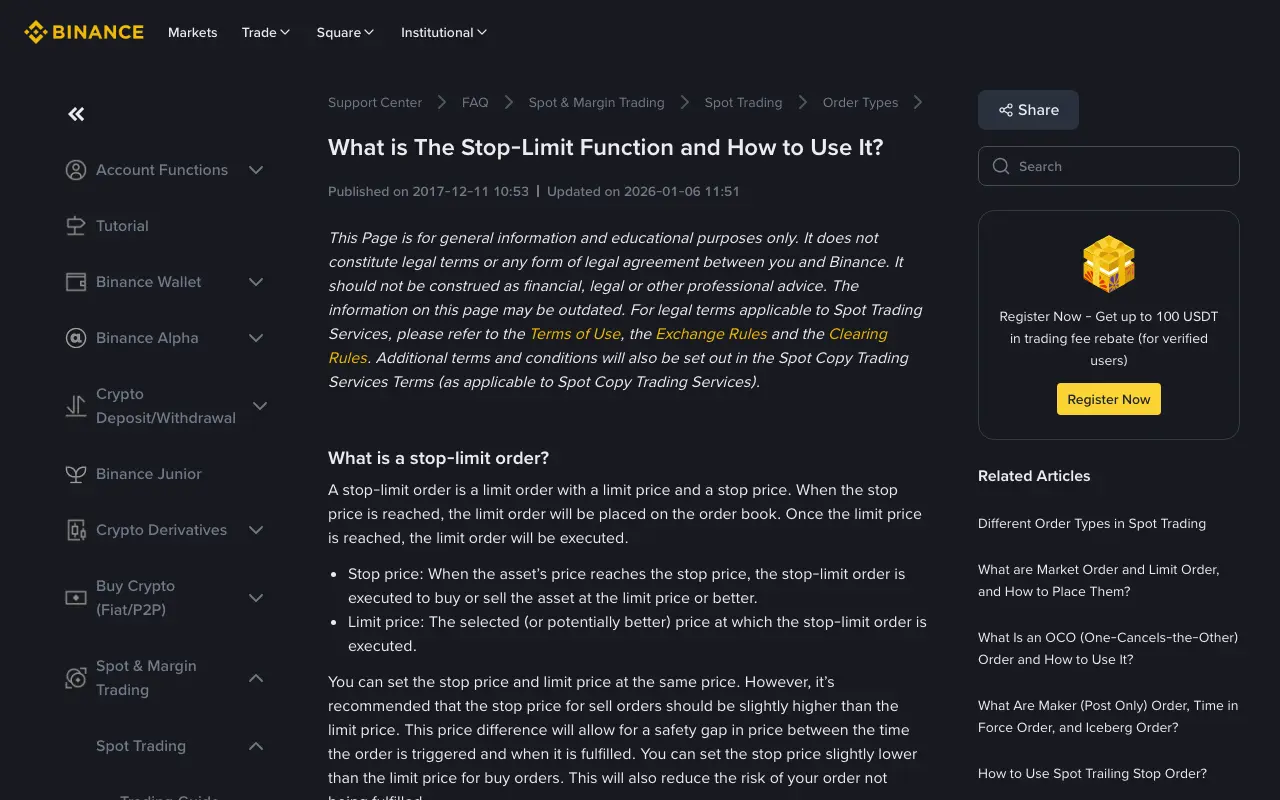
A Binance stop-limit order can reach its stop price and still leave your spot trade unfilled. The stop is only the instruction to submit a limit order; the limit price and available buyers or sellers determine what happens next. Check the order's trigger status, submitted limit price, and filled quantity before placing another exit.
Binance Support's Stop-Limit FAQ, captured on 1 October 2026. This is a public help page, not a screenshot of anyone's account or order.
First, separate the trigger from the fill
A stop-limit instruction has two prices. The stop price decides when Binance submits the order. The limit price sets the worst price you will accept: a sell seeks that price or higher; a buy seeks that price or lower. Reaching the stop does not promise a match. Binance's Spot Stop-Limit FAQ explicitly separates activation from execution.
For an illustrative sell, imagine BTC is at 100 USDT, the stop is 95 USDT, and the limit is 94 USDT. If trading reaches 95, a sell limit at 94 is submitted. If the best available bids then fall below 94 before it can match, the sell can remain open. If only part of the quantity finds buyers at 94 or better, the order can be partly filled. These round numbers explain order mechanics; they are not a live quote or a suggested stop setting.
A wider gap between stop and limit can make a match more likely, but it also permits a worse exit price. No fixed gap works for every pair or market. For a buy stop, the limit is commonly above the stop; the same fill risk applies if sellers move beyond the maximum price you set.
How to tell where the order stopped
On Binance Spot, inspect the same trading pair in Open Orders and Order History. The official Stop-Limit FAQ says the web order shows Submitted after the trigger has activated and sent its limit order to the book; the app shows a check next to Conditions. Interface labels can change, so use the order's status and timestamp together.
- No trigger or submission shown: compare the selected pair, buy or sell side, stop price, and the price movement since placement. A limit price being touched before the stop does not activate a stop-limit order.
- Submitted, with zero filled: compare your sell limit with current bids, or your buy limit with current asks. The order may be waiting because the market moved outside your acceptable price or there is insufficient matching quantity.
- Partly filled: read both the executed quantity and the remaining open quantity. Do not treat a partial fill as a complete exit.
- Canceled, expired, or rejected: read the displayed reason and order history. Do not assume that a price chart alone proves an order was live or filled.
If the order is still open and no longer matches your plan, review the live position or asset balance and other open orders before canceling or replacing it. A second order entered without this check can duplicate an exit if the first order later fills. For the difference between placing an order and actually taking liquidity, see why a Binance limit order can incur a taker fee.
Would Stop Market have filled instead?
The trade-off depends on the product and the current Binance order rules. A stop-limit order gives you an explicit limit price and may wait unfilled. Binance's current Spot Stop Market FAQ says its web and app Spot Stop Market order uses a user-selected slippage tolerance. Behind the scenes it submits a price-limited order after the trigger; it can fill partly, and an unfilled remainder can stay open. It is therefore inaccurate to assume that selecting “Stop Market” on Spot guarantees a complete exit at any price.
Binance Futures has its own order-type rules; do not apply a Spot screenshot or setting to a futures position. If you are managing leveraged risk, check the exact product, trigger basis, order status, and remaining position. Our spot order-type introduction explains ordinary market and limit orders, while the OCO order guide covers paired take-profit and stop instructions.
A quick check before relying on a stop
Write down the pair and side, the price that activates the order, the least favorable price you will accept, and the amount you need to trade. Confirm which product you are using and read its current order form. After placement, verify the order appears. After a trigger, verify filled quantity, not just a trigger icon or a line on the chart. If price moves quickly, revisit the open order and your actual balance or position rather than assuming the stop removed your exposure.
Source pages and the public screenshot were checked on 1 October 2026. Binance may change labels, execution rules, and available order types. This article explains how to inspect an order; it is not a recommendation to trade or a guarantee of execution.