
Spot Trading
How to Check the Binance Fees You Actually Paid: Spot, Futures, Convert and Withdrawals
Find the fee that actually applied to a Binance Spot fill, Futures trade, Instant Convert or crypto withdrawal. Use the right history, fee asset and receive amount to reconcile it.
Binance fees are easiest to verify from the completed transaction, not the number shown before you press Confirm. A Spot trade, a Futures position, an Instant Convert and a crypto withdrawal leave different records. Find the record for the action you took, check the amount and asset charged or received, then compare it with the rate or quote that applied at the time.
| What you did | Start with this record | What to compare |
|---|---|---|
| Spot buy or sell | Spot Trade History | Each fill's executed amount, Fee, fee asset and maker/taker role |
| Futures trade | Futures trade records and transaction history | Commission on executed orders; funding and any liquidation charge as separate entries |
| Instant Convert | Orders → Convert History | The confirmed quote and the amount of the asset received |
| Crypto withdrawal | Withdrawal confirmation and Orders → Transaction History | Coin, recipient network, displayed network fee, final receive amount and status |
The record is the starting point. A public fee table does not know your pair promotion, account tier, execution role or fee-payment setting. The live Binance Spot fee table and the relevant Futures fee table help explain a charge, but do not replace the completed record.
Spot: read each fill in Trade History
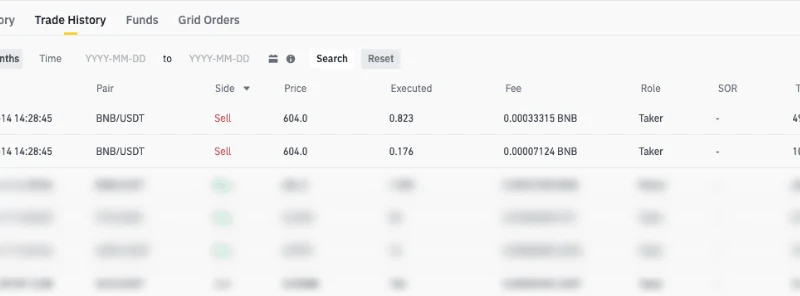
Open Trade History for the relevant pair and date. Binance's Spot activity guide says this tab shows filled trades, their transaction fees and whether each fill was maker or taker. Order History also includes unfilled orders, so an order row alone is not proof that a fee was charged. One order can match more than one trade; check every fill when its total differs from your estimate.
This is a cropped screenshot from Binance's Spot activity guide. It illustrates the Fee and Role columns; its example trades are not a current fee quote or your account record.
Compare the fee amount and asset, not just a percentage. Binance's Spot fee explanation says the trading screen's “Est. Fee” is a reference and the final fee follows the executed trade. Ordinarily, the fee is taken from the asset received: a buy may leave slightly less of the purchased coin, while a sale may leave less of the quote asset. If eligible BNB fee payment is active, the deduction can instead appear in BNB; check that setting and the available balance before assuming the fee was waived. For the buy-and-sell arithmetic, see our Spot fee and net-balance example.
If your estimate still differs, check the actual filled quantity and price, maker/taker role, account tier and any pair-specific promotion. A limit order is not automatically a maker fill: the execution record tells you which role applied.
Futures: keep commission, funding and liquidation apart
Binance's Futures fee guide distinguishes three possible charges. Commission arises when an order executes, including an opening or closing fill. Funding is a separate payment or receipt for an eligible perpetual position at settlement; it is not another commission on that fill. An Insurance Clearance entry can arise after forced liquidation. Do not add a funding receipt as if it were a fee you paid, or assume every position has a liquidation charge.
From the Futures interface, open Orders → USDⓈ-M Futures Order or COIN-M Futures Order for the contract you used. Binance's Futures order-history guide notes that Order History includes canceled and unfilled orders, so total only completed executions. Review the corresponding transaction entries, sum opening and closing commissions across their fills, and keep funding entries with their signs. Check for an Insurance Clearance entry only if liquidation occurred. The commission base for USDⓈ-M Futures is executed notional value multiplied by the applicable fee rate, rather than the margin you posted; Binance's fee-structure guide explains the calculation. Your contract, maker/taker role, VIP tier and any eligible BNB payment can change the result.
Convert: compare the accepted quote with what arrived
For Instant Convert, do not look for a Spot trading-commission row. Binance's Convert FAQ says no additional traditional trading fee is added beyond the quoted price; the preview shows the amount you will receive if you accept that quote. The conversion rate can differ from a Spot price. Afterward, open Orders → Convert History and compare the completed conversion with the quote you accepted.
If you are choosing between routes before trading, compare the net asset received for the same input amount rather than a “zero fee” label. Our Convert-versus-Spot comparison shows how to make that comparison without treating a changing quote as guaranteed.
Withdrawals: use the coin and recipient network
The withdrawal confirmation shows the network fee and final amount the recipient can receive. Binance says this fee can change with network conditions and varies by coin and network; check the live figure before confirming. A lower displayed fee is useful only when the recipient supports that exact network. Binance's withdrawal instructions direct users to Orders → Transaction History to check the submitted withdrawal's status.
Compare your confirmation with the history entry for the same coin, network and request. If the destination balance is different, first check whether the transfer completed and whether the receiving platform has credited it; do not label the difference a Binance trading fee without a matching fee record. The withdrawal network and minimum checklist covers the checks to make before sending.
A quick way to resolve a mismatch
- Identify the product and the completed transaction. An estimate, open order or old fee-table screenshot is not the final charge.
- Record the executed or quoted amount and its asset. A fee in BNB cannot be subtracted from a received USDT balance as if both were the same asset.
- Separate price effects from fee entries. Spot execution price, a Convert quote and a withdrawal network fee answer different questions.
- If the record still does not reconcile, recheck the pair or contract, account tier, maker/taker role, fee-payment setting, promotion and transaction time against Binance's current product rules.
This method helps you find the charge that actually applied to your transaction. Fee schedules, promotions and interfaces can change; your own confirmation and completed records are the evidence for a specific action.